
Understand what an author represents
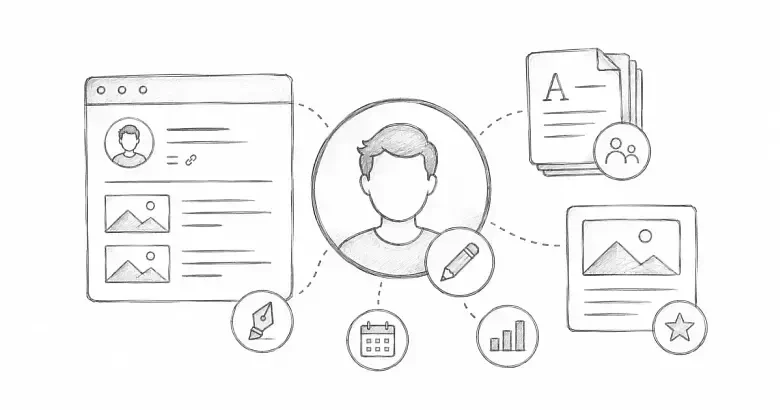
In PostnHost, an author is both a CMS account and a reusable public profile. The account email and password allow the person to sign in. The public profile supplies the name, role, biography, image, social links, and slug used for article attribution and optional author pages.
Keeping these two responsibilities clear makes it easier to add teammates without exposing account details on the public site.
Create an author account
- Open Authors from the CMS navigation.
- Select New Author.
- Enter the author’s name and sign-in email.
- Create a password of at least six characters and confirm it.
- Select Create Author.
Use an email address controlled by the author. Never place a real password in documentation or shared notes. When editing an existing author later, leave both password fields blank to keep the current password.
Complete the public profile
Open the author from Authors and add the information readers should see:
- Author Image gives the profile and byline a recognizable visual.
- Author Name is the public display name.
- Position describes the author’s role. If it is blank, PostnHost uses “Author.”
- Slug controls the author-page path and is generated from the name when first created.
- BIO is the short biography shown on the public profile.
- Social Links should include only profiles the author wants to share publicly.
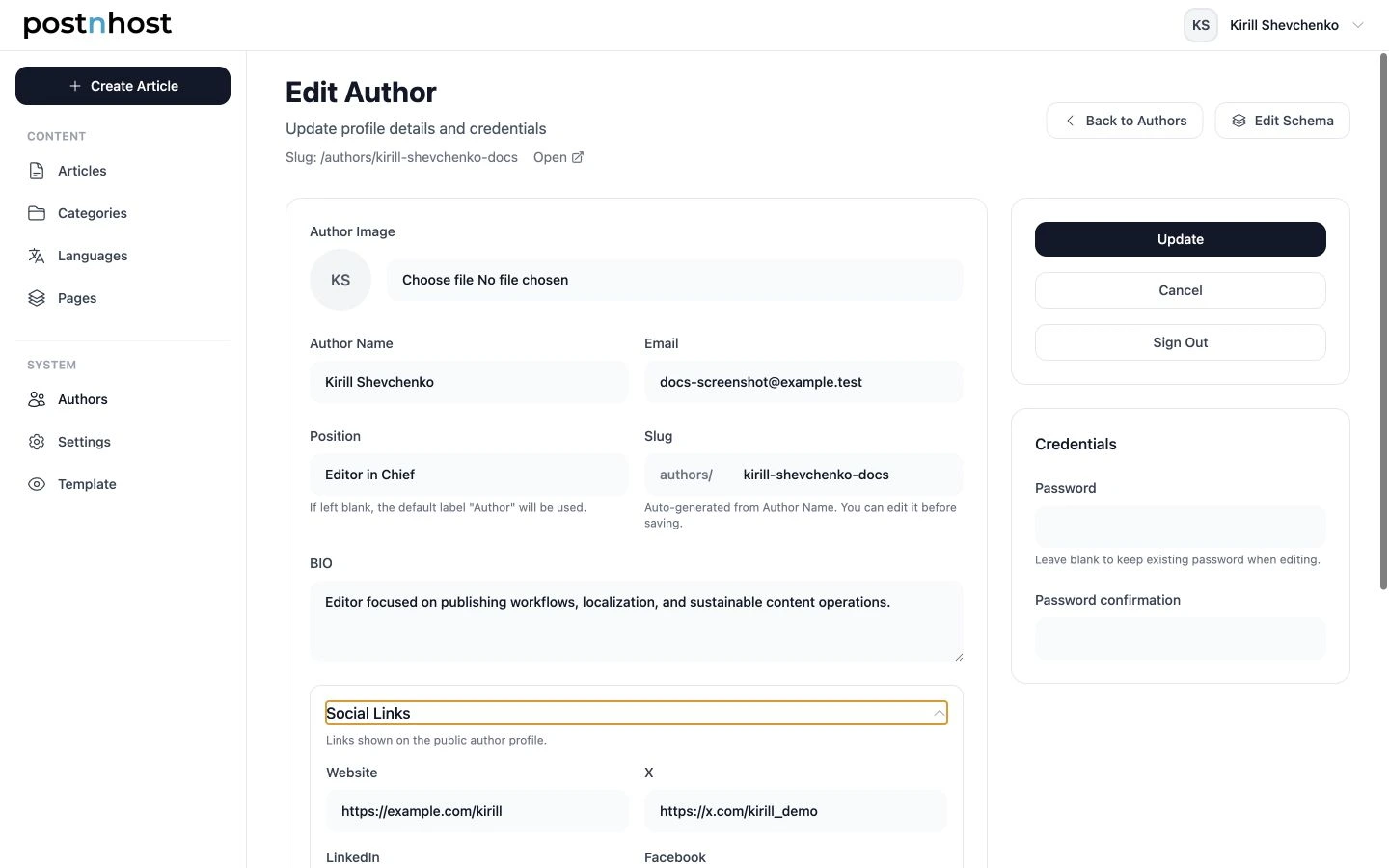
The Edit Author screen keeps public profile information separate from sign-in credentials.
Select Update after reviewing the profile. Open the public author page when it is enabled and check the biography, links, and image as a reader would see them.
Assign authors to an article
The person who creates an article is assigned as its first author automatically. To add a co-author:
- Open the article editor.
- Expand Authors in the Details sidebar.
- Select + Add author.
- Choose the author from the selector and wait for Saved.
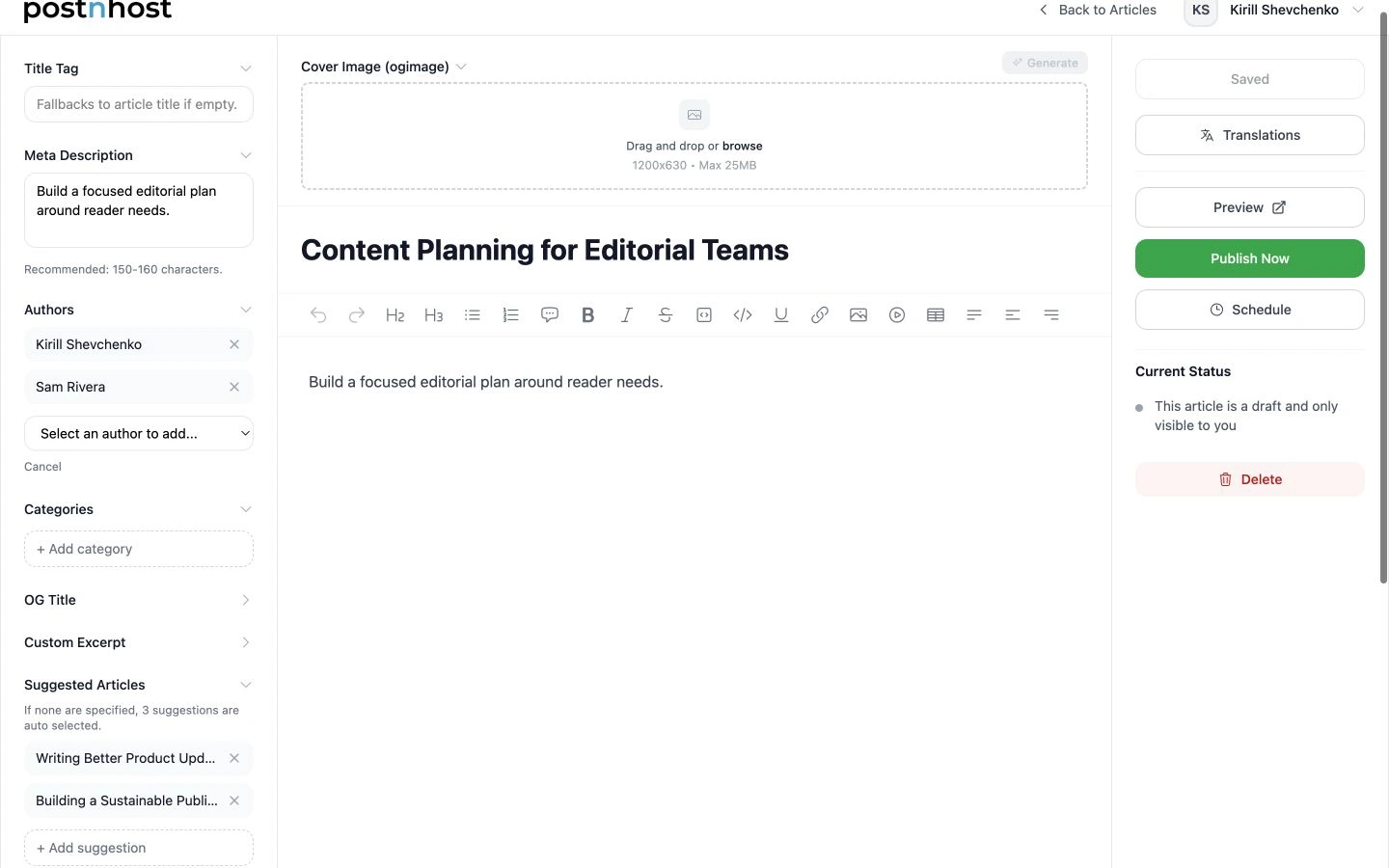
An article can retain multiple authors in their assignment order.
Use the remove control beside a name when that person should no longer be attributed. Author order is preserved, and templates that show only one author use the first assigned author. Add the primary contributor first, then supporting contributors in the order you want retained.
Control public author pages
Open Settings → Feature Flags and enable Author pages when readers should be able to open public author profiles from bylines. Disabling the feature removes public author-profile routes and byline links, but it does not erase attribution stored on articles.
Know what happens when an author is removed
You cannot remove the account you are currently using. Another administrator must handle that change. An author who owns CMS pages also cannot be removed until those pages are reassigned or deleted.
When an eligible author is removed, their articles are kept. Their author assignments are removed, so review affected articles and add the correct remaining author where needed.
Add advanced author schema only when needed
The regular profile provides the starting information for author structured data. Use Edit Schema for optional expertise, awards, education, language-specific text, or additional authoritative profile links. See Configure Structured Data (Schema) and Sitemap SEO for the complete walkthrough.
A simple author checklist
- The author can sign in with their own email.
- The public name, role, slug, biography, and links are accurate.
- Article authors appear in the intended order.
- Author pages are enabled only when the publication wants public profiles.
- Pages are reassigned before an account is removed.