
Publish at the right local time
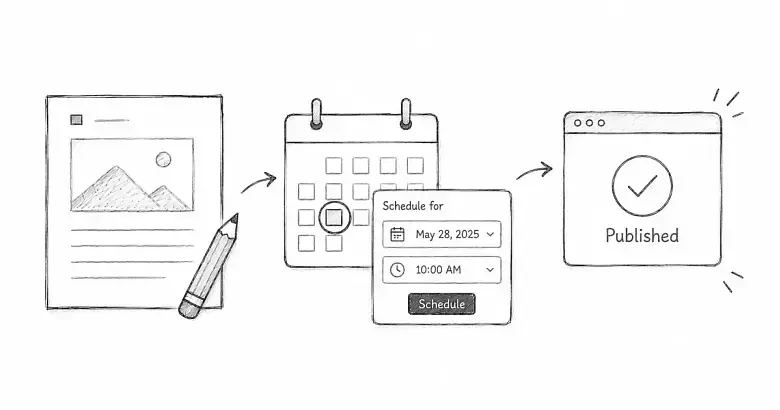
Scheduling lets you prepare an unpublished article now and have PostnHost publish its saved draft at a future time. Set the site timezone first so editors enter and read dates consistently.
Set the site timezone
- Open Settings and select Timezone.
- Choose the timezone used by your editorial team.
- Select Save Timezone.
PostnHost uses this timezone for times displayed and entered in the CMS. If a distributed team publishes against one main market, choose that market’s timezone and document the choice for every editor.
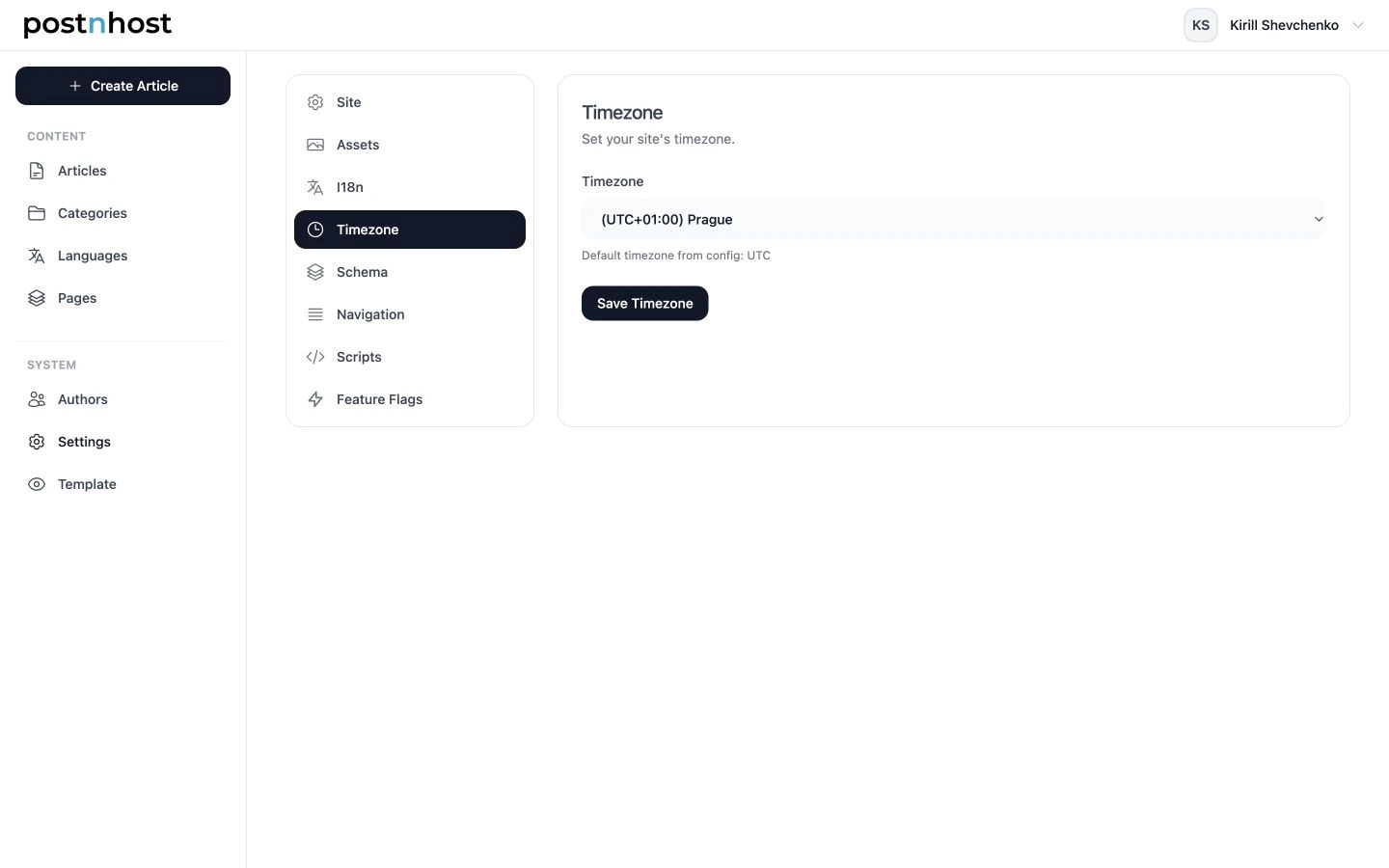
Choose the editorial timezone before selecting a publication date.
Schedule an unpublished article
- Open a draft article and finish the content you want published.
- In the Actions sidebar, select Schedule.
- Choose a future date and local time.
- Leave the field and wait until the editor shows Saved.
The Schedule control is available for unpublished articles. After saving, the Actions sidebar shows Scheduled publish with the chosen time. The article also appears under the Scheduled filter on the Articles page.
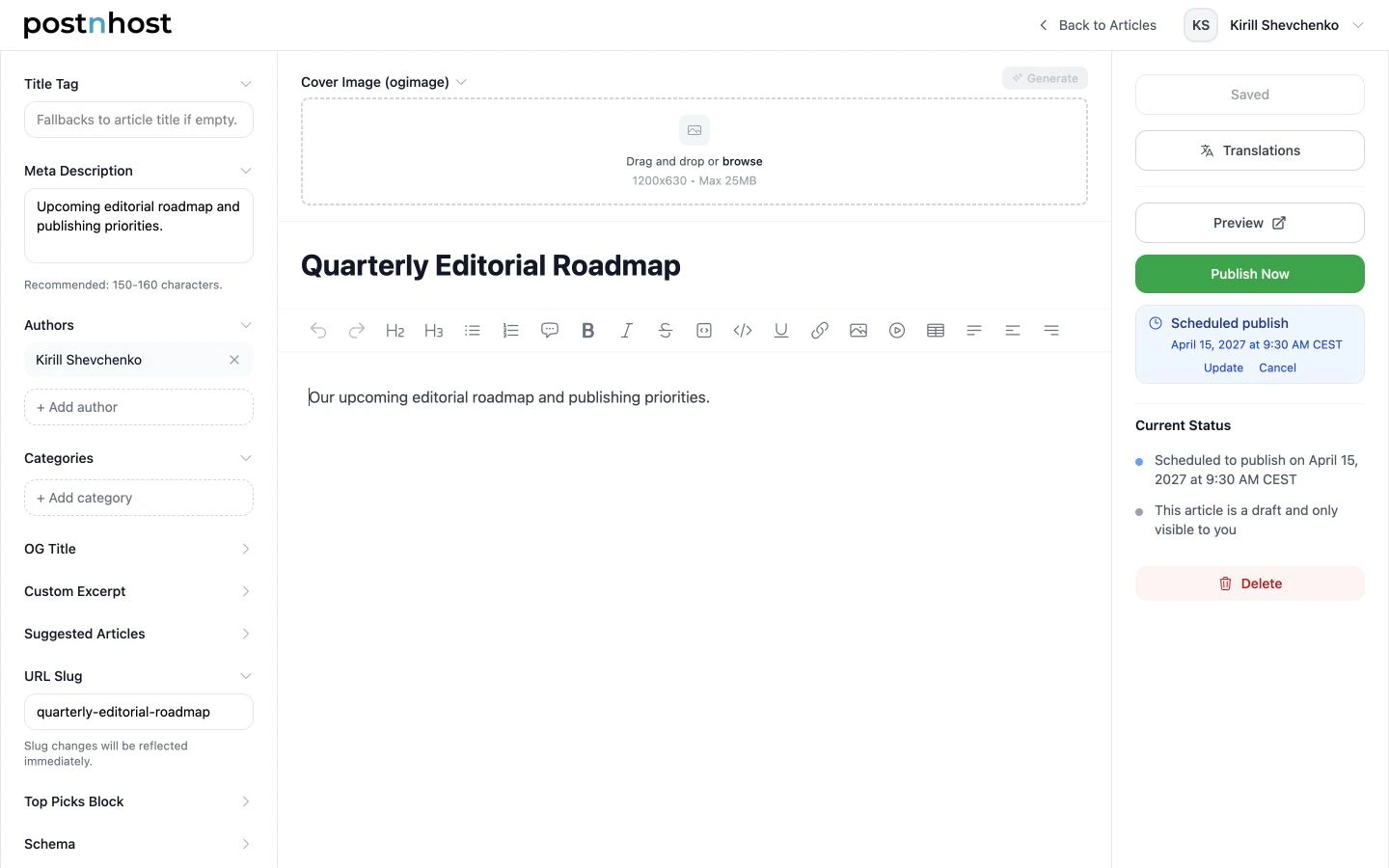
The scheduled summary confirms the saved publication time in the configured timezone.
Update the publication time
Select Update in the scheduled summary, choose another future time, and wait for Saved. PostnHost replaces the previous scheduled job, so only the latest saved time should be used.
Cancel a schedule
Select Cancel in the scheduled summary and wait for the editor to save. The article remains a draft and will no longer appear in the Scheduled filter. You can publish it manually or schedule it again later.
What happens at publication time
When the scheduled time arrives, PostnHost asks its background-job system to publish the saved draft. After a successful run, the article becomes public like an article published with Publish Now.
Scheduling depends on the application’s background worker being available. If the time passes and the article is still a draft, refresh the editor and check Details → Timestamps for a publication error. An administrator can also check the job dashboard at /jobs and confirm that the publishing worker is running.