
Publish each language on its own schedule
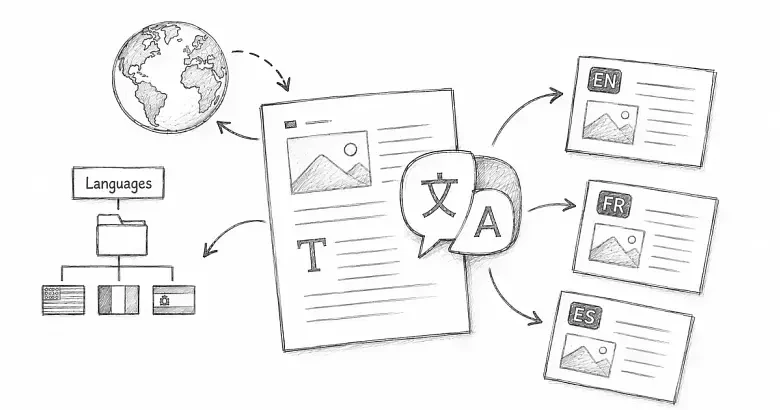
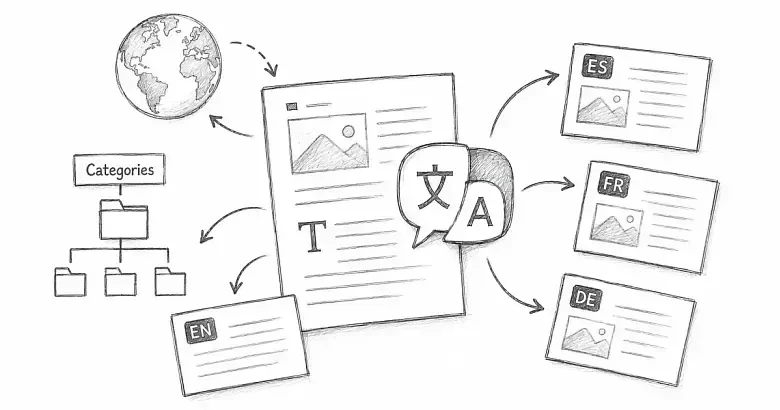
PostnHost keeps translated articles, pages, and categories connected to their source content while giving each translation its own draft and published state. You can prepare one language, review it, and publish it without changing the others.
Before starting, add the target languages under Languages. For AI translation, publish the source article or page first.
Open the translation workspace
- Open an article or page in the CMS.
- Select Translations.
The workspace shows existing translations, their language and status, plus the languages still available. Choose Translate with AI or open Manual Translation to continue.
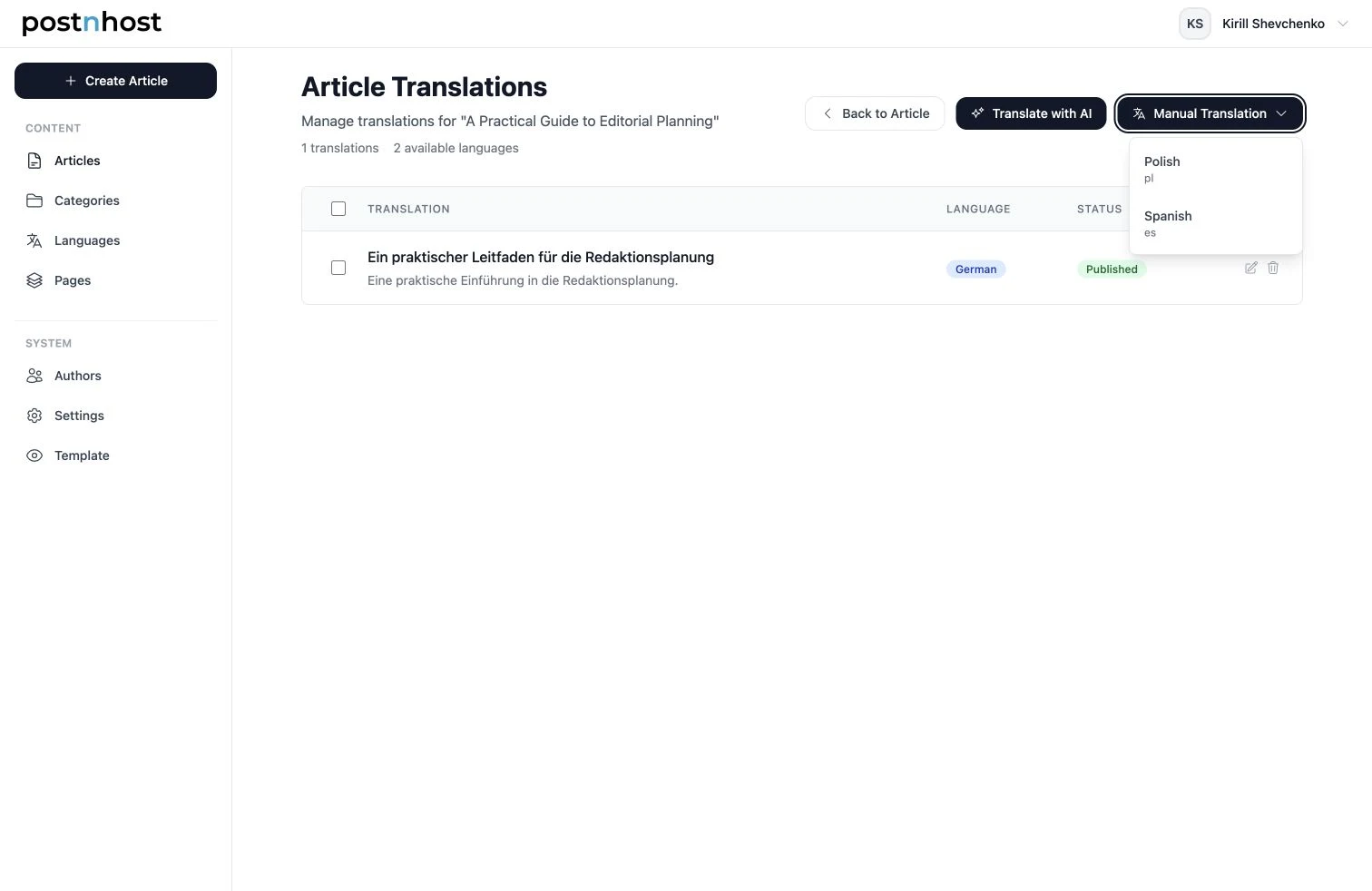
An existing German translation is published while Polish and Spanish remain available.
Create translations with AI
Select Translate with AI, choose one or more languages, and start the translation. PostnHost creates a separate draft for every selected language.
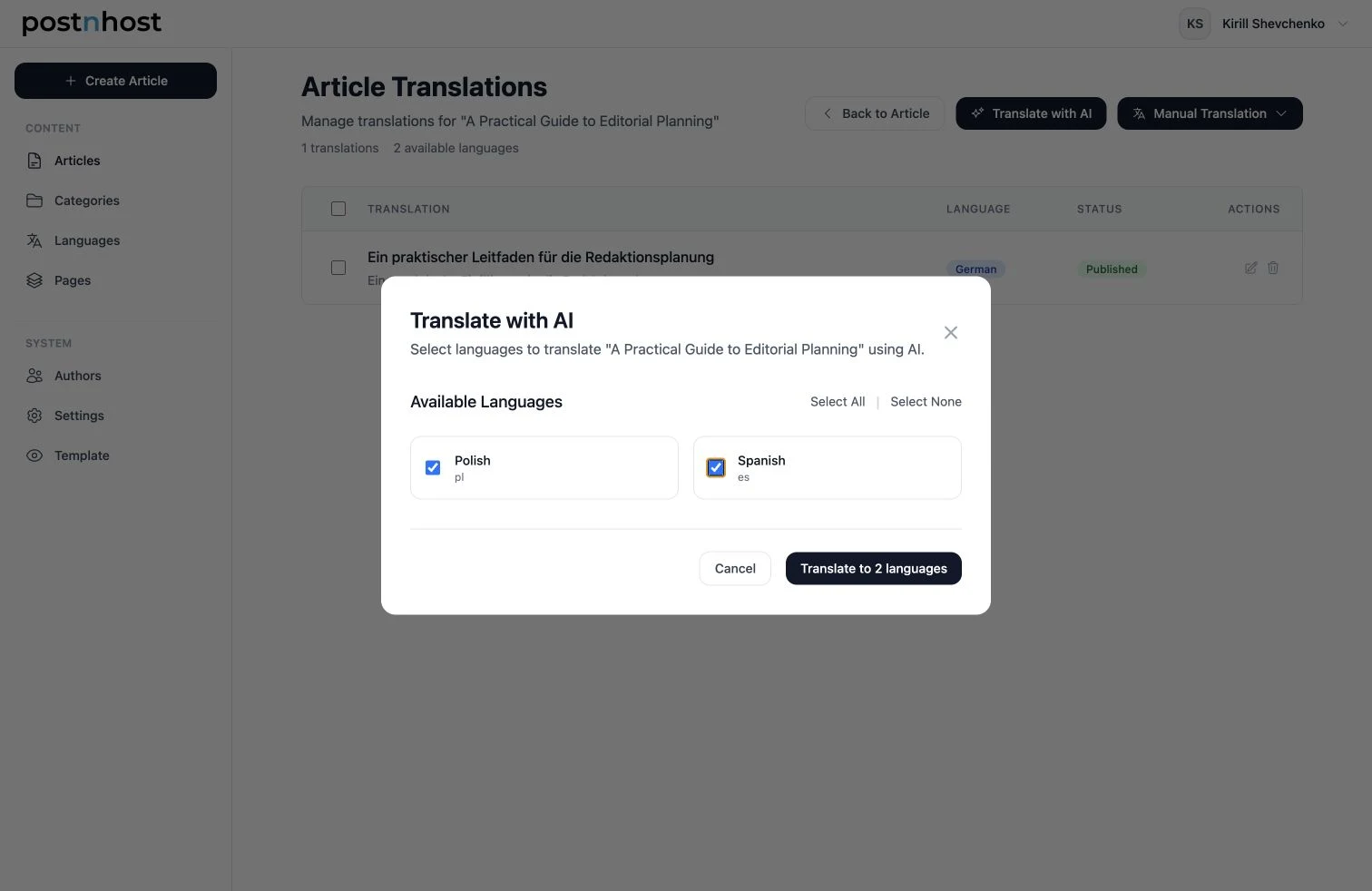
Select only the languages you are ready to review.
AI translation requires an OpenAI key configured by the host application through config.openai_api_key or the postnhost.openai_access_token Rails credential. If the AI action reports that configuration is missing, ask the application administrator to enable it. Never place a real key in an article or shared note.
Article AI translation uses the published source snapshot. Draft changes made after the last publication are not included until you publish a new source version.
Wait for generation, then review
A new AI translation may show a Translating state while background work is running. It cannot be edited until generation finishes. Refresh the list after a short wait if the status has not changed.
Open the completed draft and review it as editorial work, not as a finished result. Check the title, title tag, social title, description, excerpt, body, links, image context, and language-specific terminology. Correct anything that sounds unnatural or changes the meaning.
Create a manual translation
- Open Manual Translation.
- Select one available language.
- Replace the copied source fields with the translated text.
- Review the complete draft and publish it when ready.
The copied source is a working starting point; it is not a translation. Manual mode works well when a translator wants the original structure visible or when AI translation is not configured.
Publish translations independently
Publishing the English article does not publish its Polish or Spanish variants, and unpublishing one translation does not automatically unpublish the others. Review each language’s status from the translation workspace.
Article and page translation lists also support bulk publish, unpublish, and delete actions. Select the intended rows, choose the action, and confirm it carefully. Bulk actions are useful after a coordinated review, but independent publishing is safer when languages are approved at different times.
Translate categories
Open a category and choose its translations. Category translations use a simpler form with a localized name and description instead of the full article editor. Create and review each available language there.
The article and page bulk controls do not apply to category translations. Manage category languages individually so navigation labels and category pages stay intentional.
Before publishing a language
- The translation uses the correct Language record.
- The title, metadata, excerpt, and body have been reviewed by a person.
- Links and names make sense for the target audience.
- Shared public text is ready under Settings → I18n.
- The translation’s own status is Published.