
Build navigation around your content
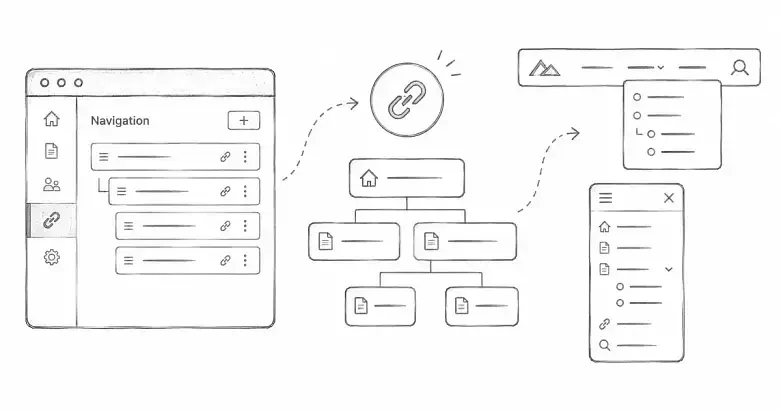
PostnHost can create public navigation automatically from your categories and pages, or you can replace it with a custom structure. Custom navigation is useful when you want a smaller header, a grouped dropdown, dedicated footer columns, an external newsletter link, or different labels for each language.
This guide shows how to switch to custom navigation, add header and footer items, choose the right target type, localize labels, and verify the result. You will work in Settings → Navigation.
Before you start
Create and publish the content you want to link before building the menu. The Article and Page target lists contain published content. A category link also needs published content in that category before it can resolve on the public site. If your site uses multiple languages, create the Language records and publish the relevant translations first.
Keep a second browser tab open on the public site so you can check the desktop header, mobile menu, and footer after saving.
Switch from automatic to custom navigation
- Sign in to PostnHost and open Settings.
- Select Navigation from the settings menu.
- Choose the language whose labels you want to edit.
- Turn off Use auto-generated navigation.
The custom builder now shows two areas: Header Navigation and Footer Columns. Turning off automatic navigation does not copy the generated menu into the builder. You are creating a new, intentional structure.
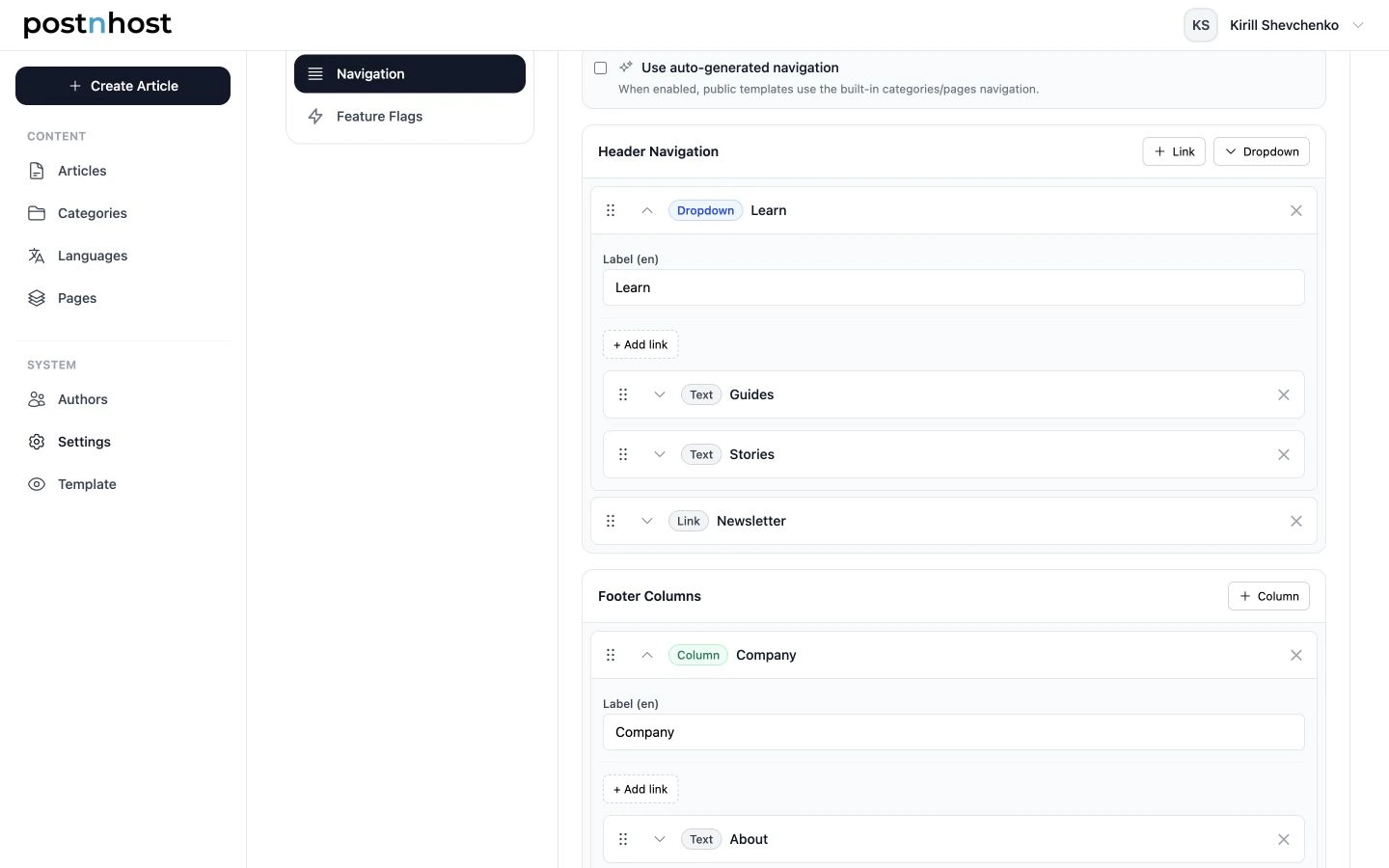
Custom navigation can combine direct header links, grouped dropdowns, and footer columns in one localized structure.
Add a link to the header
- Under Header Navigation, select Link.
- Enter a label for the selected language. The label is optional for most internal targets because PostnHost can use the target title.
- Choose a Target Type.
- Choose the target or enter the external URL.
Use a custom label when the content title is too long for navigation. For example, a page titled “About the Fieldnotes Editorial Team” could use the shorter label “About.”
Choose the right target type
- Article links to a published article.
- Page links to a published CMS page.
- Category links to the public listing for that category.
- Static Page links to a code-defined page such as Terms or Privacy.
- External Link opens a complete URL outside the site in a new tab.
- Text displays a label without creating a link.
Text items work well as small section labels, but they do not have a destination. Use them sparingly so visitors do not mistake them for broken links.
Create a header dropdown
A dropdown groups related destinations without crowding the main header. Under Header Navigation, select Dropdown, give the group a clear label, and use + Add link to add its children.
Each child uses the same target choices as a standalone header link. A useful structure might be a “Learn” dropdown containing a guide article, an About page, and a Guides category. Keep the list short enough to scan quickly on both desktop and mobile.
Build footer columns
Under Footer Columns, select Column. Give the column a label such as “Company,” “Resources,” or “Legal,” then add its child links. Footer columns can combine internal pages, static pages, external links, and text items.
A practical footer could contain a Company column with About and Contact pages, plus a Legal column with Terms and Privacy static pages. Custom footer links replace the built-in category and page groups used by automatic navigation.
Add an external link safely
Choose External Link and enter the full address, including https://. PostnHost opens external navigation links in a new tab and adds protective relationship attributes automatically.
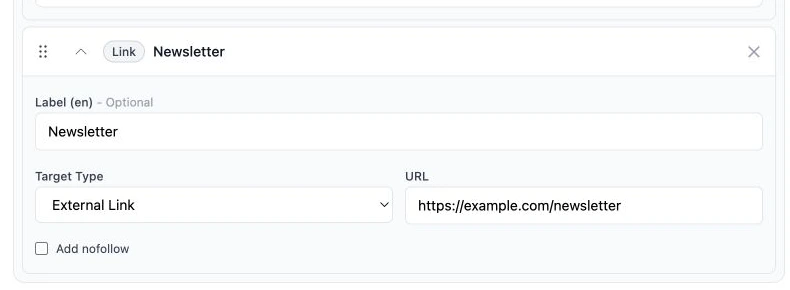
External links require a complete URL; use Add nofollow only when the destination should not receive an editorial endorsement.
Enable Add nofollow when you do not want search engines to treat the link as an editorial endorsement. This can be appropriate for paid, sponsored, or otherwise untrusted destinations. It is usually unnecessary for your organization’s own newsletter, store, or social profile.
Reorder and remove items
Use the drag handle to reorder items within the same header, dropdown, or footer-column list. Items cannot be dragged from one container into another. To move a destination between containers, remove it from the old location and add it to the new one.
Use the remove control on an item when it is no longer needed. Nothing changes on the public site until you select Save Navigation.
Localize navigation labels
Use the Language selector at the top of Navigation settings to edit labels for another locale. The underlying destination stays the same while the visible label can change. If a localized label is blank, PostnHost falls back to the default-language label and then to the target’s title when available.
Internal links are locale-aware. When a translated article or page is published, visitors in that language are sent to the localized version. If a translated article or page is unavailable, PostnHost can use the default-language destination. Category links require published content for the active language, so verify them in every locale you support.
Save and verify the result
- Select Save Navigation.
- Open the public site in the default language and test every header link.
- Open each dropdown and confirm its children appear in the intended order.
- Reduce the browser width and test the mobile navigation.
- Scroll to the footer and test each column and external link.
- Repeat the check for every supported language.
If an internal target is missing from a selector, publish the article or page and return to Navigation settings. If a category link does not appear publicly, confirm that the category contains a published article for the language you are testing.