
Help readers find the next useful article
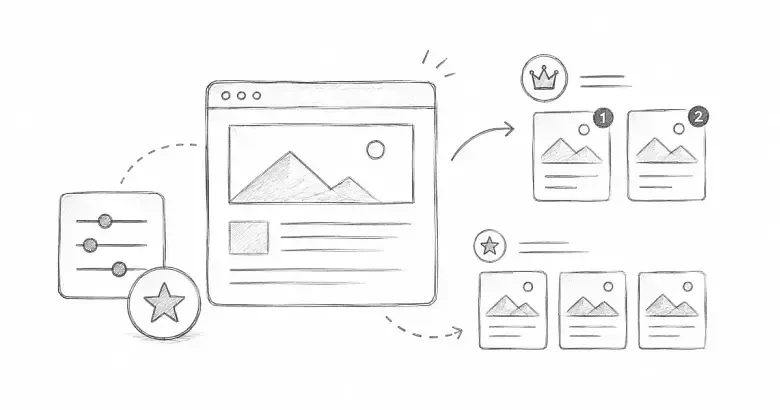
PostnHost offers two separate ways to surface important content. Suggested Articles appear as related reading around an article, while Top Picks Block marks an article for a featured public block supported by your active template.
Use suggestions to continue the reader’s current topic. Use Top Picks for a small collection of especially useful or timely articles.
Choose suggested articles manually
- Open the article you want to edit.
- In the Details sidebar, expand Suggested Articles.
- Select + Add suggestion.
- Choose a relevant article from the selector.
- Repeat when a second suggestion genuinely helps the reader.
- Wait until the editor shows Saved.
Choose published articles that directly extend the current subject. For example, a guide to editorial planning could suggest articles about product updates and maintaining a publishing calendar.
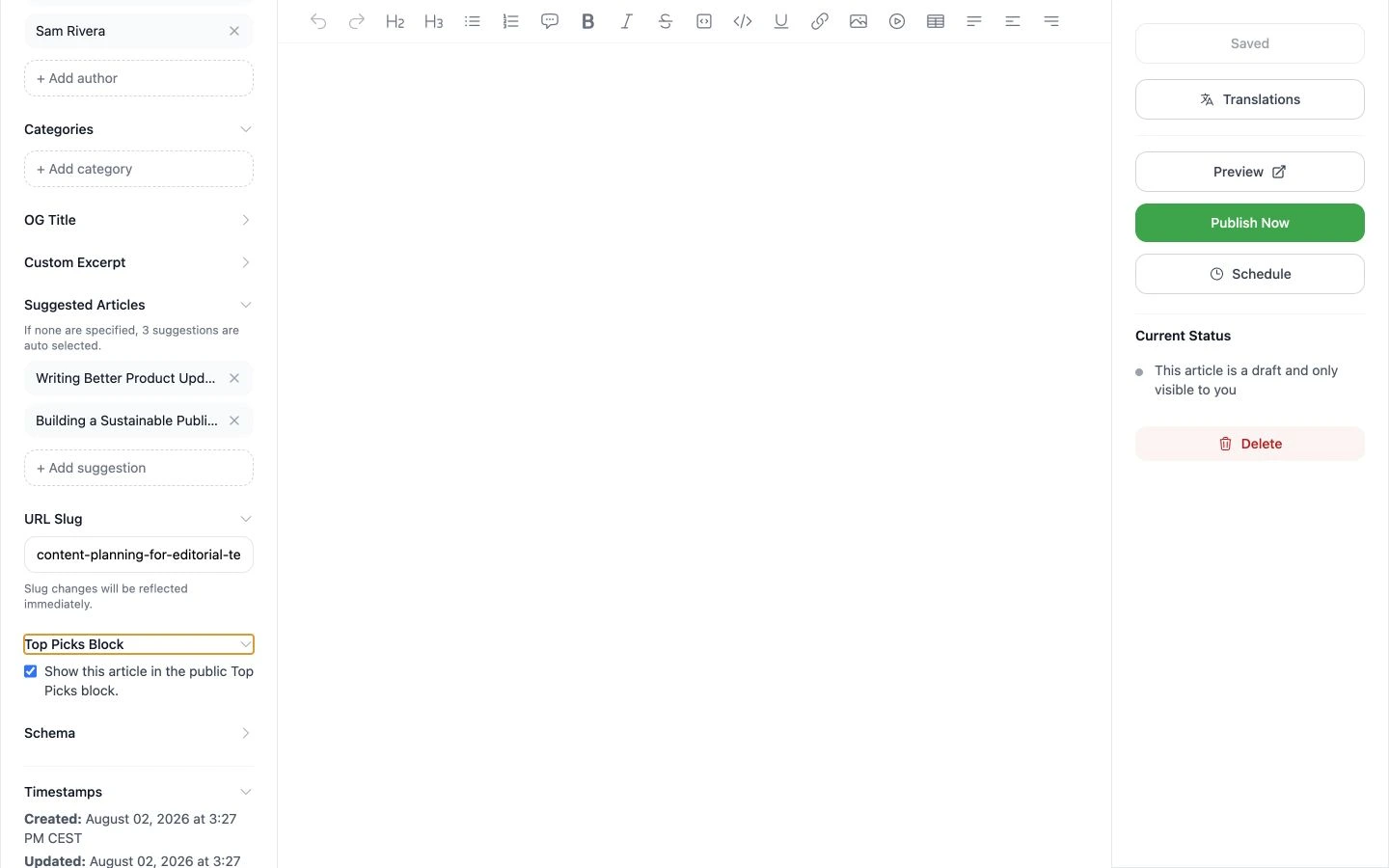
Manual suggestions and the Top Picks setting are managed independently in the Details sidebar.
Let PostnHost choose when the list is empty
If you do not specify any suggestions, PostnHost automatically selects three. This gives a new article a useful related-reading area without requiring manual setup.
Manual choices are better when the reading path matters. Leave the list empty when the automatic set is good enough, and review the public article after publishing to make sure the suggestions are useful.
Remove or replace a suggestion
Select the remove control beside an article to take it out of the manual list. You can then add another article, or remove every manual choice to return to the automatic three-article behavior. Wait for Saved before leaving the editor.
Add an article to Top Picks
- Expand Top Picks Block in the Details sidebar.
- Enable Show this article in the public Top Picks block.
- Wait for the change to save, then review the public site.
Top Picks is a featured-content flag, not a new article sort order. Its exact placement and appearance depend on the public template. If the active template does not display a Top Picks block, enabling the checkbox does not change the normal article list.